Your PDF. On the big screen. · Interactive walkthrough
Show a PDF on TV or a Projector Without HDMI
A clean PDF on the display, with page changes controlled from your device.
Display a PDF on TV or a projector from your phone or laptop. Follow Document, Show now, Fit page and Fit width with an interactive page-control illustration.
Open vuthis.com on the TV or projector
Open vuthis.com in the display browser. For a projector, use its browser or the computer already connected to it. Keep the connection code on screen.
Connect your phone, tablet or laptop
Scan the screen QR code with your phone. On a laptop or tablet, open vuthis.com/r and enter the screen code. Both devices need internet; they can use different networks.
Choose Document and select your PDF
On the connected controller, choose Document and select the PDF you want to present. Check that it is the intended document.
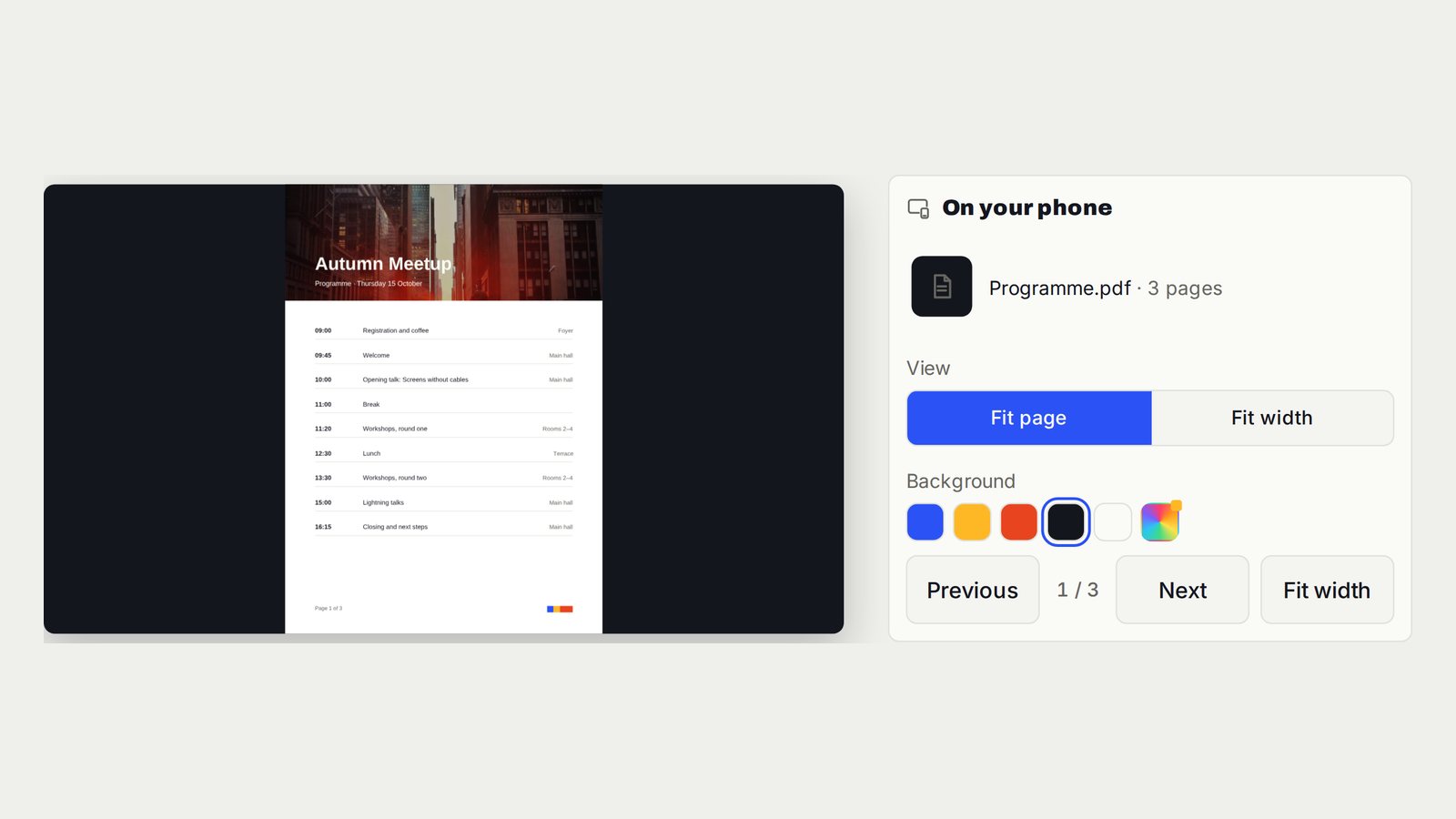
Tap Show now to display the PDF
Choose Show now. The PDF appears on TV or the projector while its controls remain on your phone or laptop.
Use Fit page or Fit width
Fit page keeps the complete page visible. Fit width enlarges a tall page for reading. Choose the view that makes the important text legible.
Turn pages from your phone or laptop
Use Previous and Next. In Fit width, the controls move through a tall page a screenful at a time before changing pages.
Useful when it matters
Put it to work in the room.
- A proposal on a meeting-room projector.
- A training worksheet on a classroom screen.
- A PDF menu or programme on a venue TV.
Read the V U This Show a PDF on TV or a Projector Without HDMI product guide
Watch the Show a PDF on TV or a Projector Without HDMI video
Get the result right
A quick screen check.
- Use a standard, unprotected PDF. Export password-protected material to an authorised unprotected copy before selecting it.
- For a portrait document, compare Fit page with Fit width from the audience position.
Read the screen from the audience position. Keep the selected content clear, current and useful for the people in the room.
Your PDF. On the big screen.
Open vuthis.com on the display. Connect from another device. You can present the document at your own pace.
The next useful screen
Keep the whole setup ready.
PowerPoint, Google Slides and Keynote on TV Without HDMI
Slide pages on the room screen. You decide when the next one appears.
Follow the interactive walkthrough →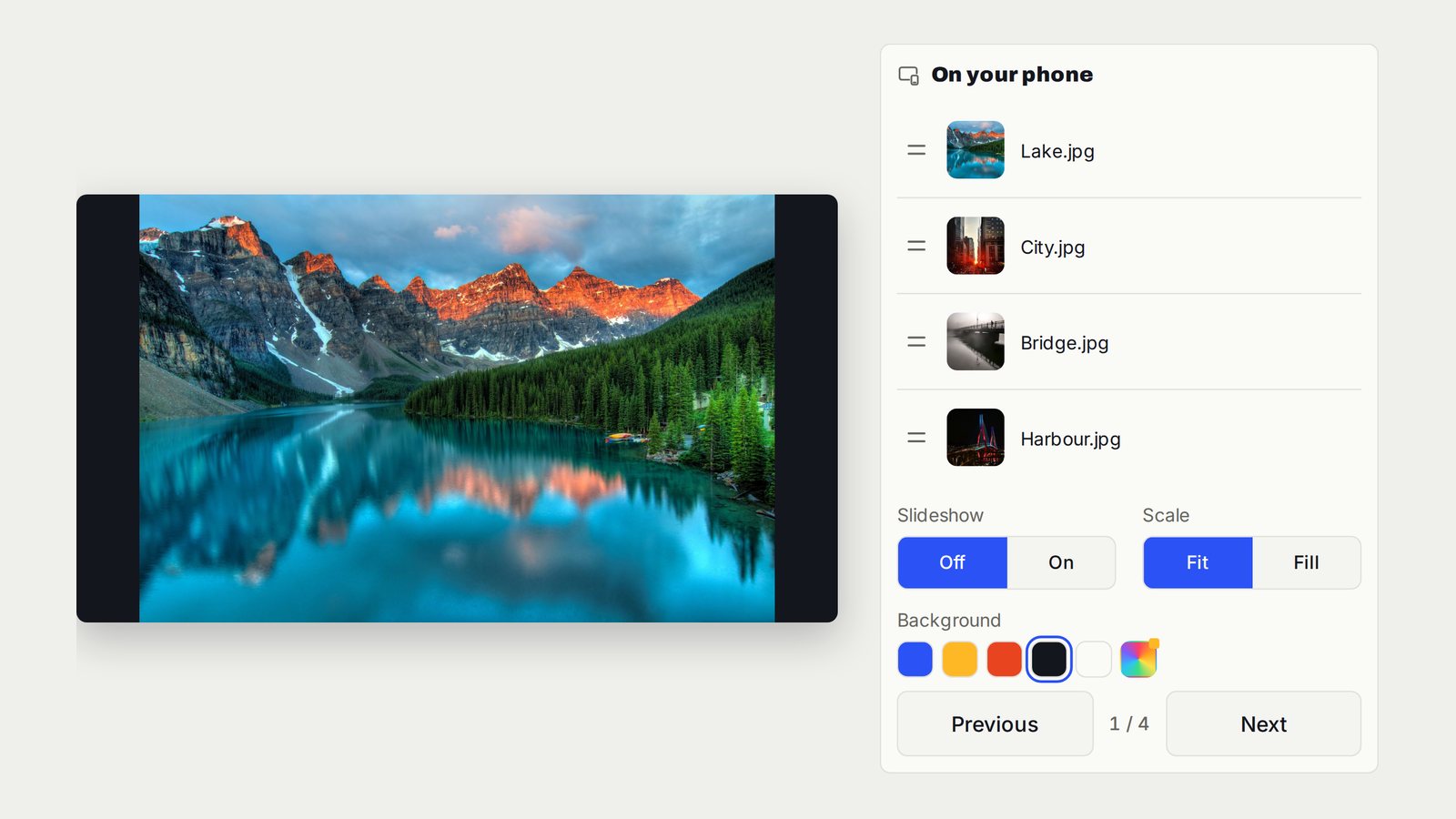
Show Photos and Run a TV Slideshow Without Casting
The photos you choose on the TV. Move through them yourself or let the slideshow run.
Follow the interactive walkthrough →Connect a Phone or Laptop to TV Without HDMI
Your chosen content on the room screen. The controls stay with you.
Follow the interactive walkthrough →Read · Print · Reuse
Keep this walkthrough with the next job.
The two-page handbook has clickable setup and related-guide links. Its page images and descriptions are also available as a IIIF presentation manifest, linked to this interactive page and the main V U This product.