Open. Connect. Show.
See the result.
Make it happen.
PDF on a projector. Slides in a meeting. Photos on TV. A clear message for the room.
Choose what you want to do. Follow the steps, try the example controls and keep the printable guide. Every walkthrough starts with the same quick connection: open vuthis.com on the display, then connect your phone, tablet or laptop.
12 focused interactive guides
What should the screen do next?
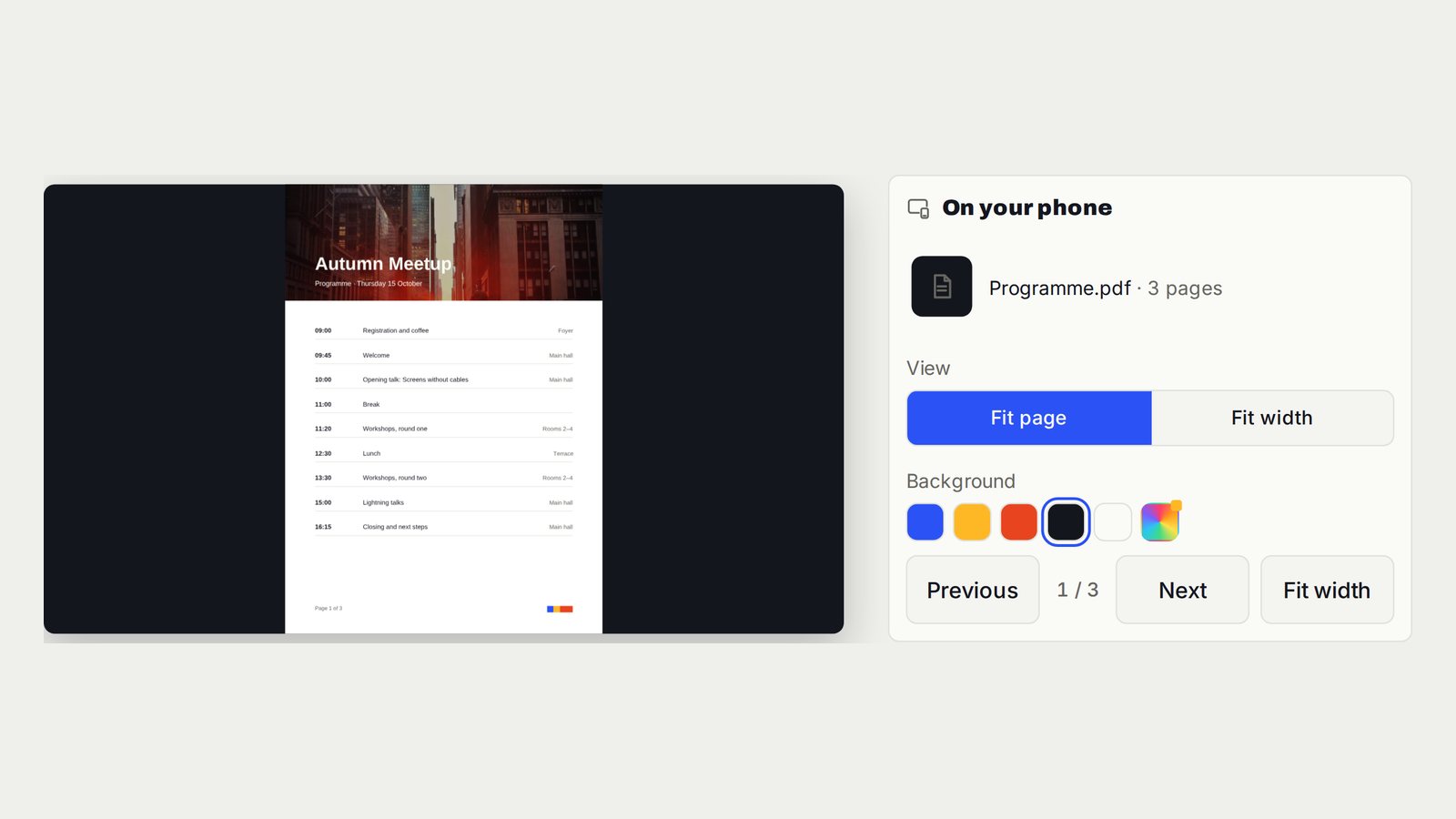
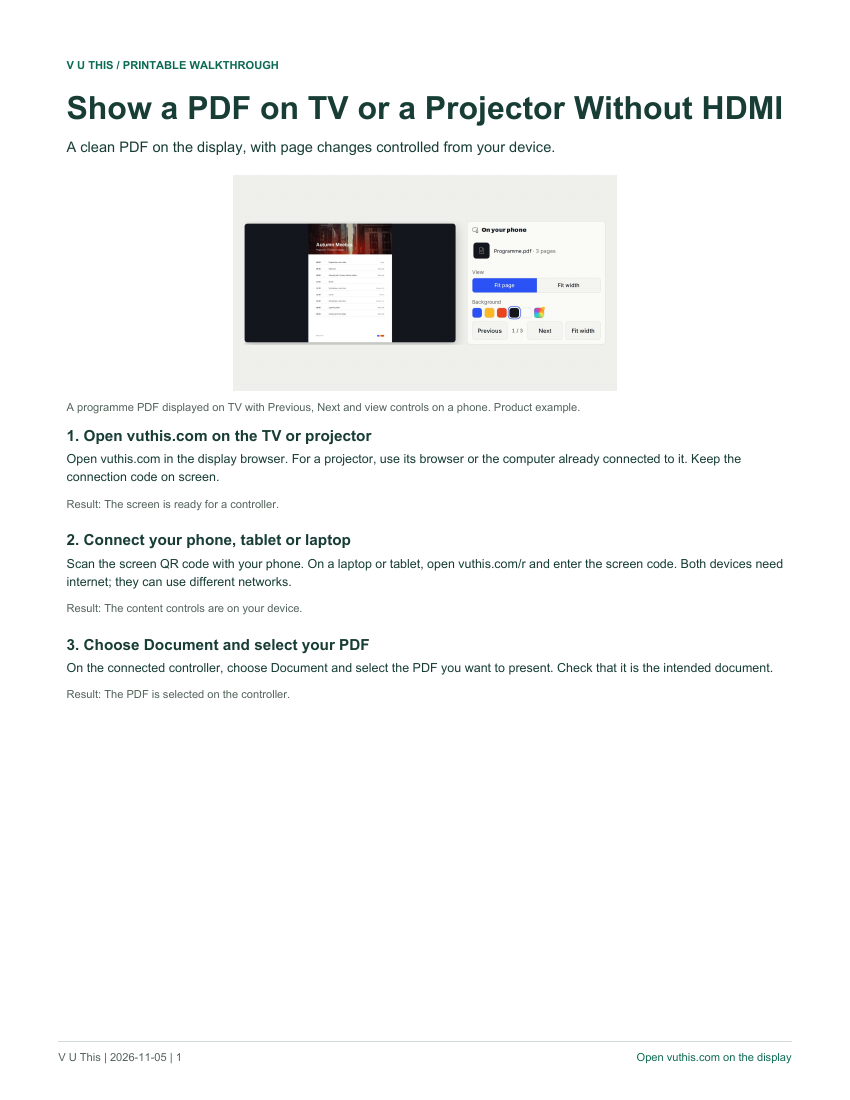
Show a PDF on TV or a Projector Without HDMI
A clean PDF on the display, with page changes controlled from your device.
Follow the interactive walkthrough →PowerPoint, Google Slides and Keynote on TV Without HDMI
Slide pages on the room screen. You decide when the next one appears.
Follow the interactive walkthrough →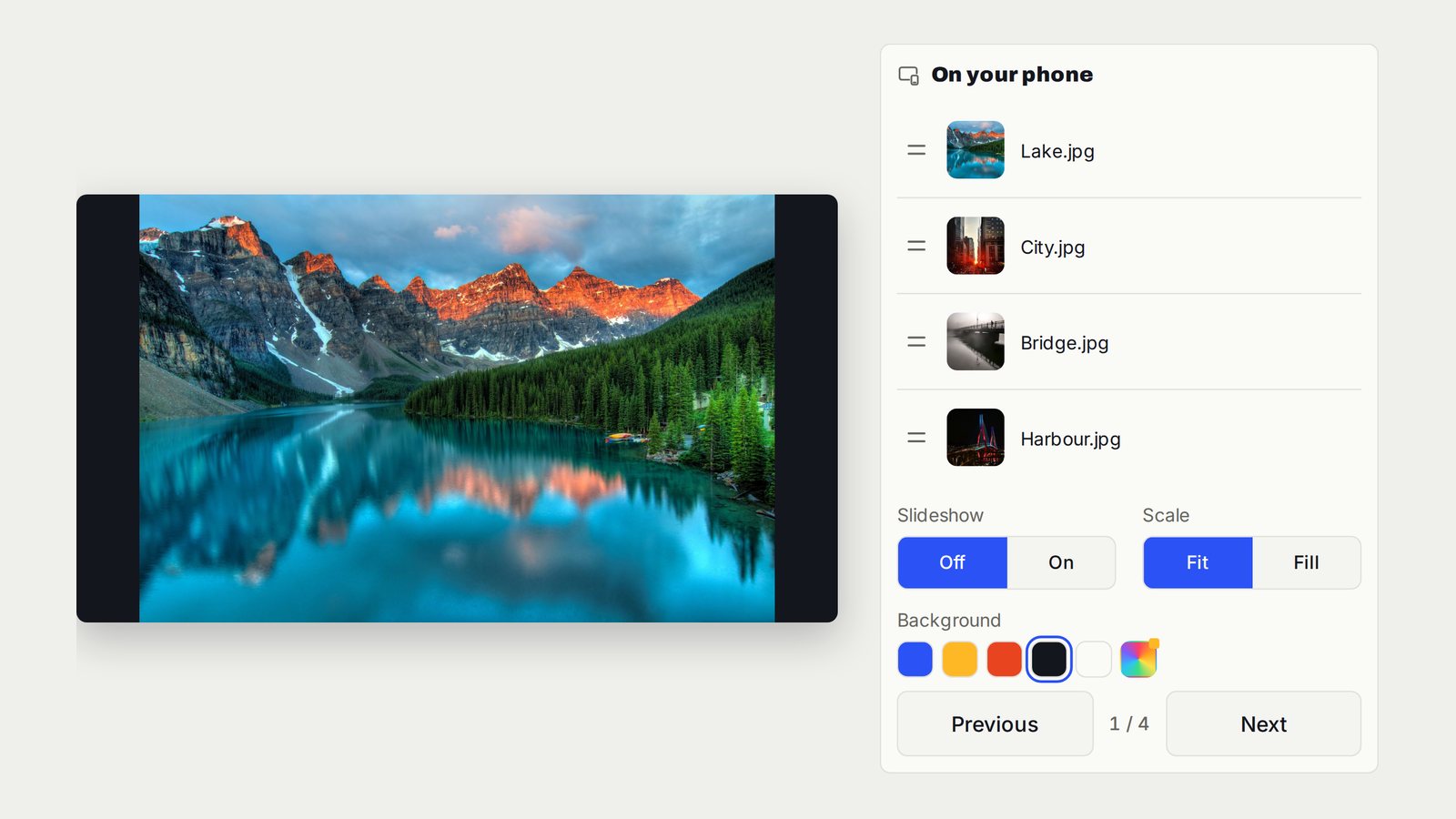
Show Photos and Run a TV Slideshow Without Casting
The photos you choose on the TV. Move through them yourself or let the slideshow run.
Follow the interactive walkthrough →Connect a Phone or Laptop to TV Without HDMI
Your chosen content on the room screen. The controls stay with you.
Follow the interactive walkthrough →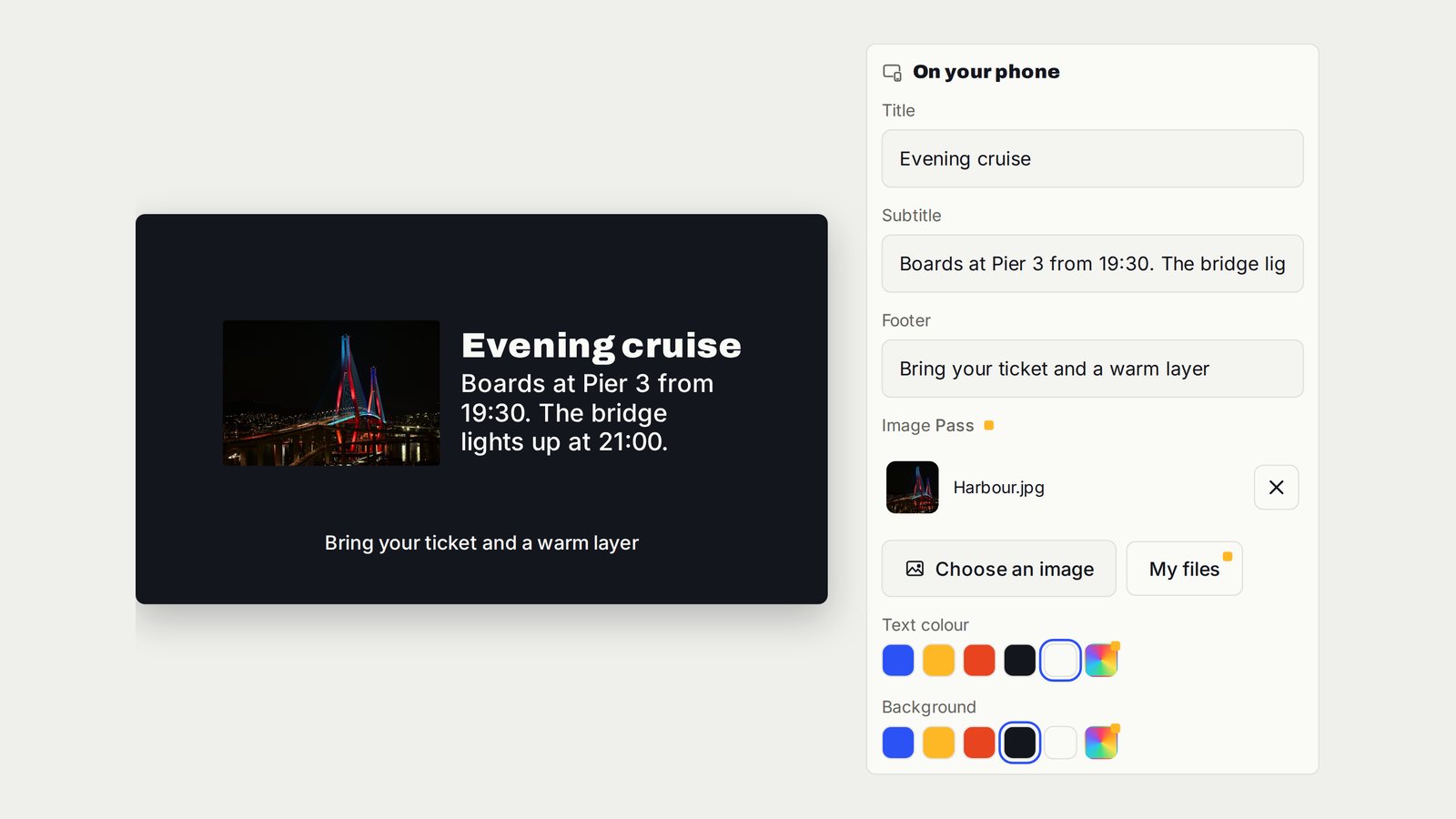
Turn a TV into a Digital Notice Board
A structured announcement that tells everyone what changed and what to do next.
Follow the interactive walkthrough →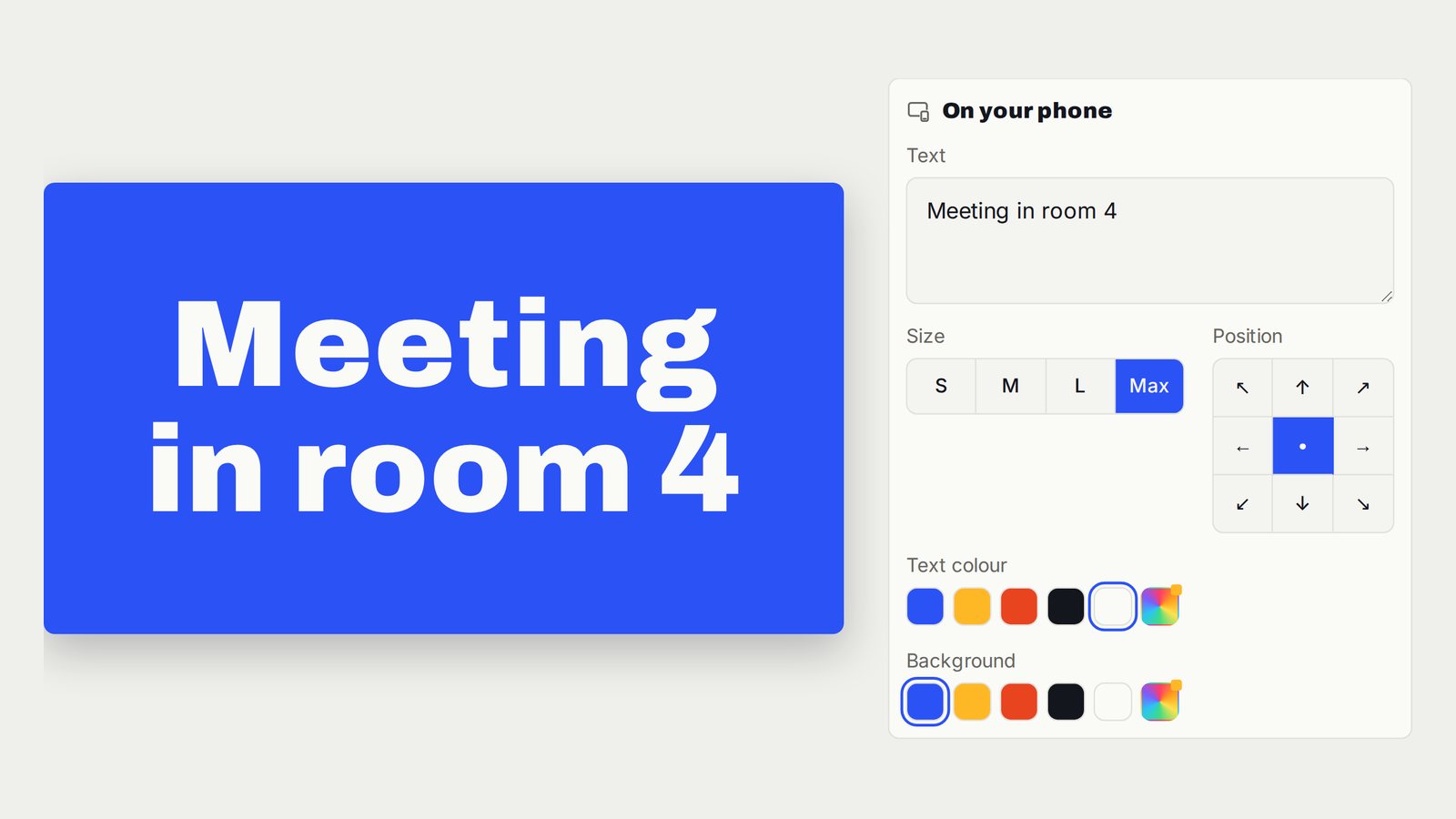
Display Large Text and Welcome Messages on TV
One clear message, readable from across the room.
Follow the interactive walkthrough →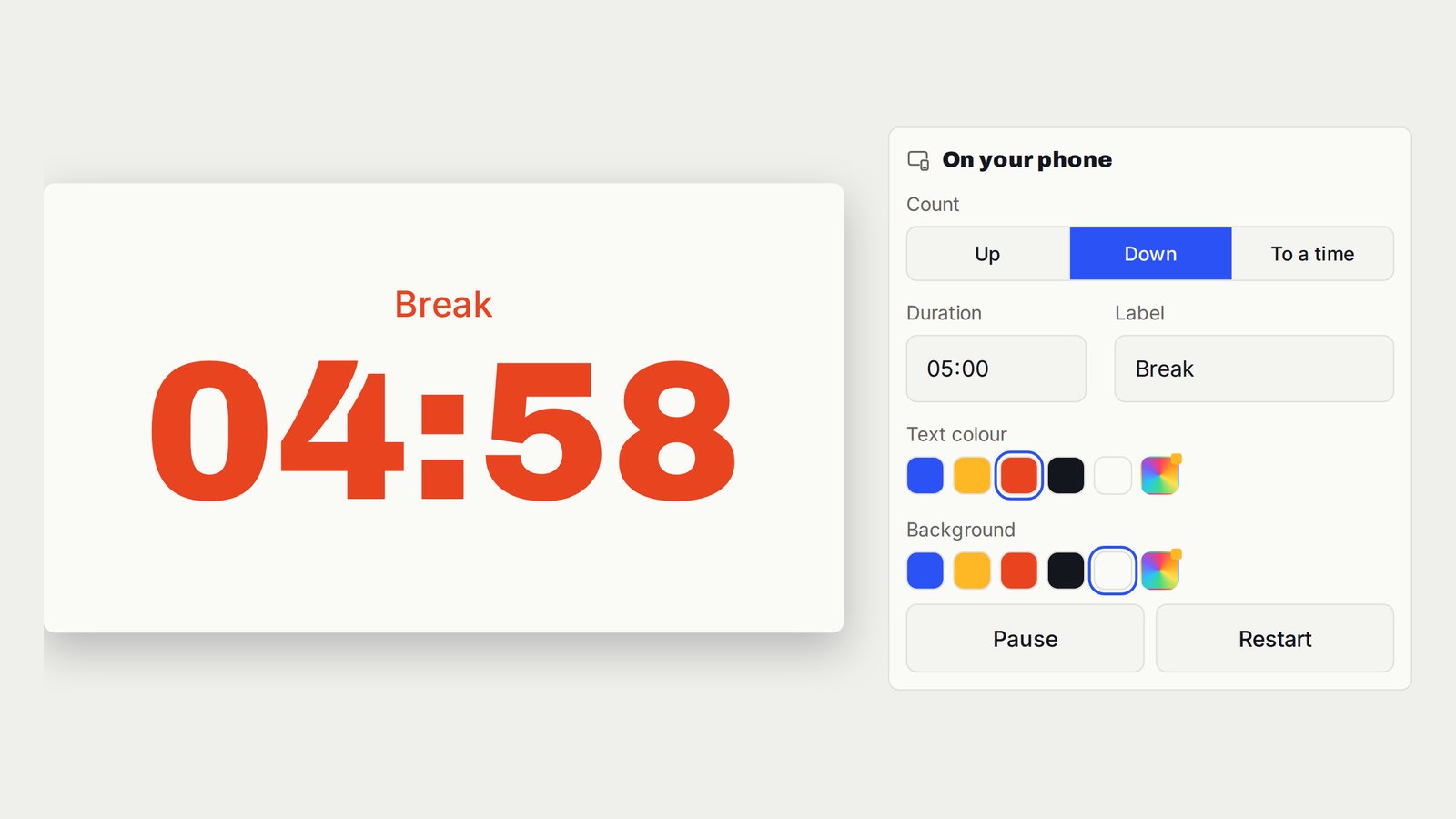
Countdown, Count-Up and Presentation Timer on TV
A clean timer for the room, with timing controls on your device.
Follow the interactive walkthrough →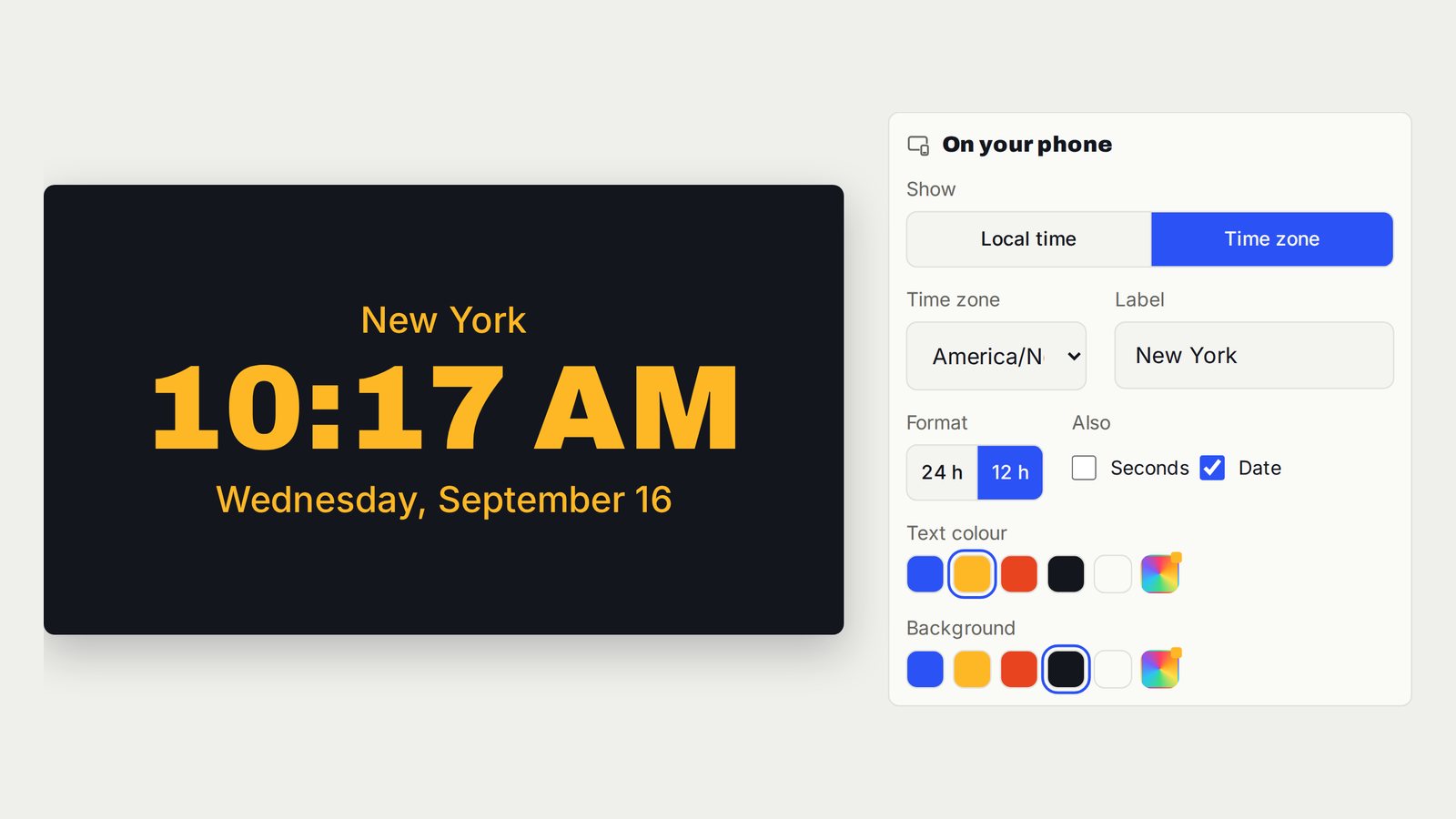
Show a Full-Screen Clock or World Time on TV
One large labelled clock for the time the room needs to follow.
Follow the interactive walkthrough →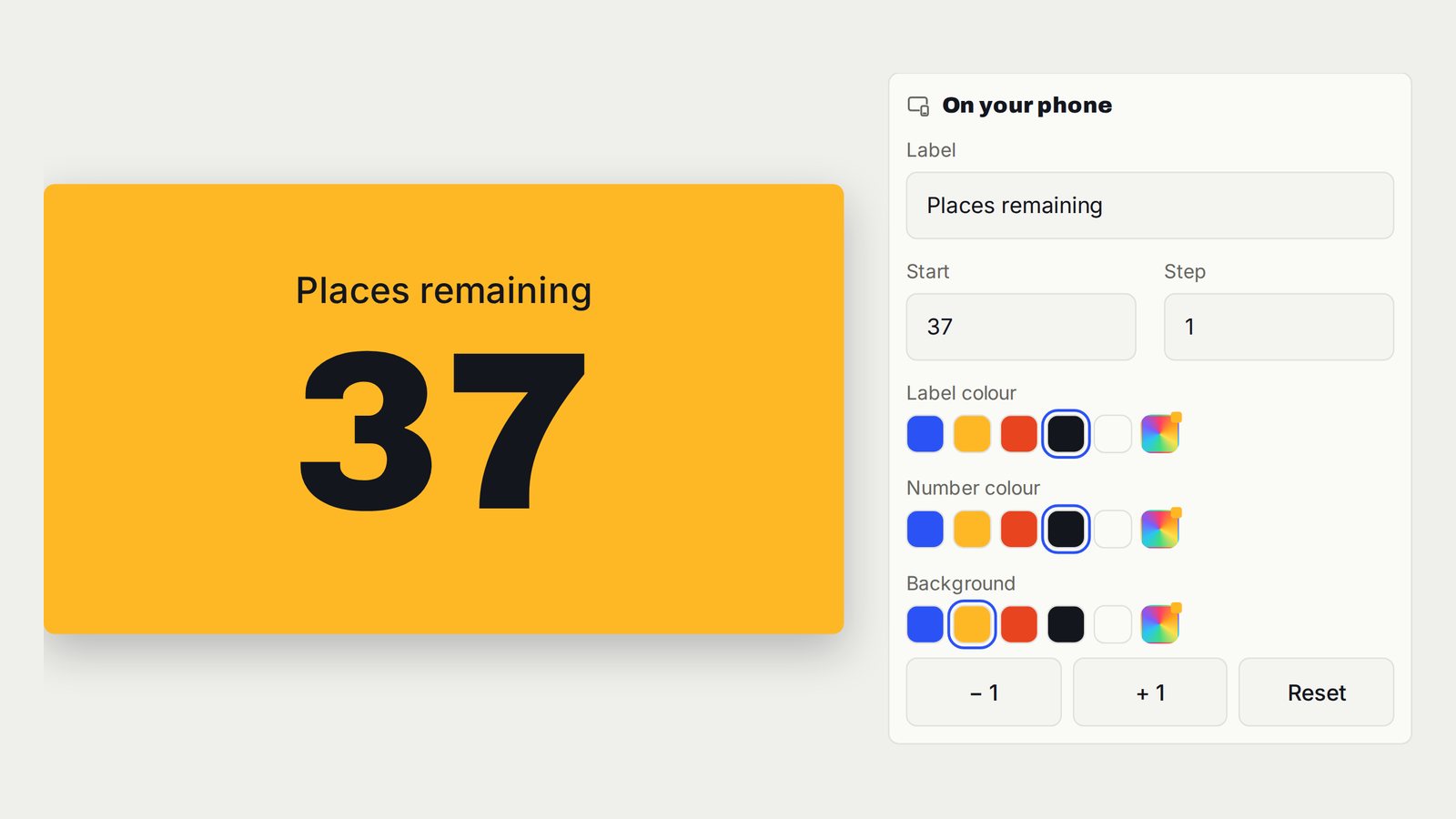
Display a Now-Serving Number or Tally Counter on TV
The current number, large and labelled, with the controls kept off the public screen.
Follow the interactive walkthrough →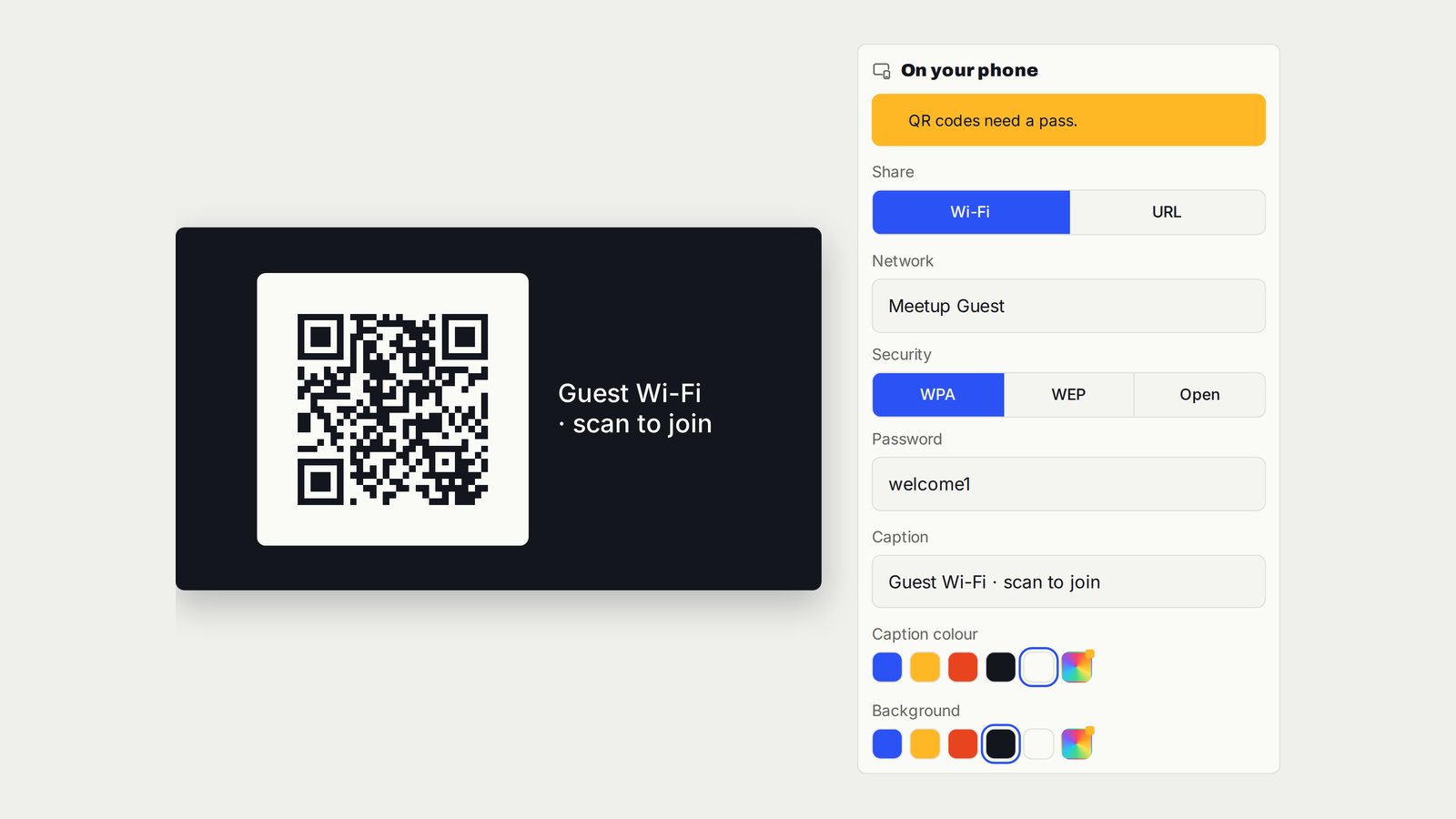
Display a Website QR Code on TV for Menus, Agendas and Feedback
One clear code on the screen, taking guests to the page they need.
Follow the interactive walkthrough →Show a Guest Wi-Fi QR Code on a Hotel or Meeting-Room TV
Guest-network joining details in one scannable code on the screen.
Follow the interactive walkthrough →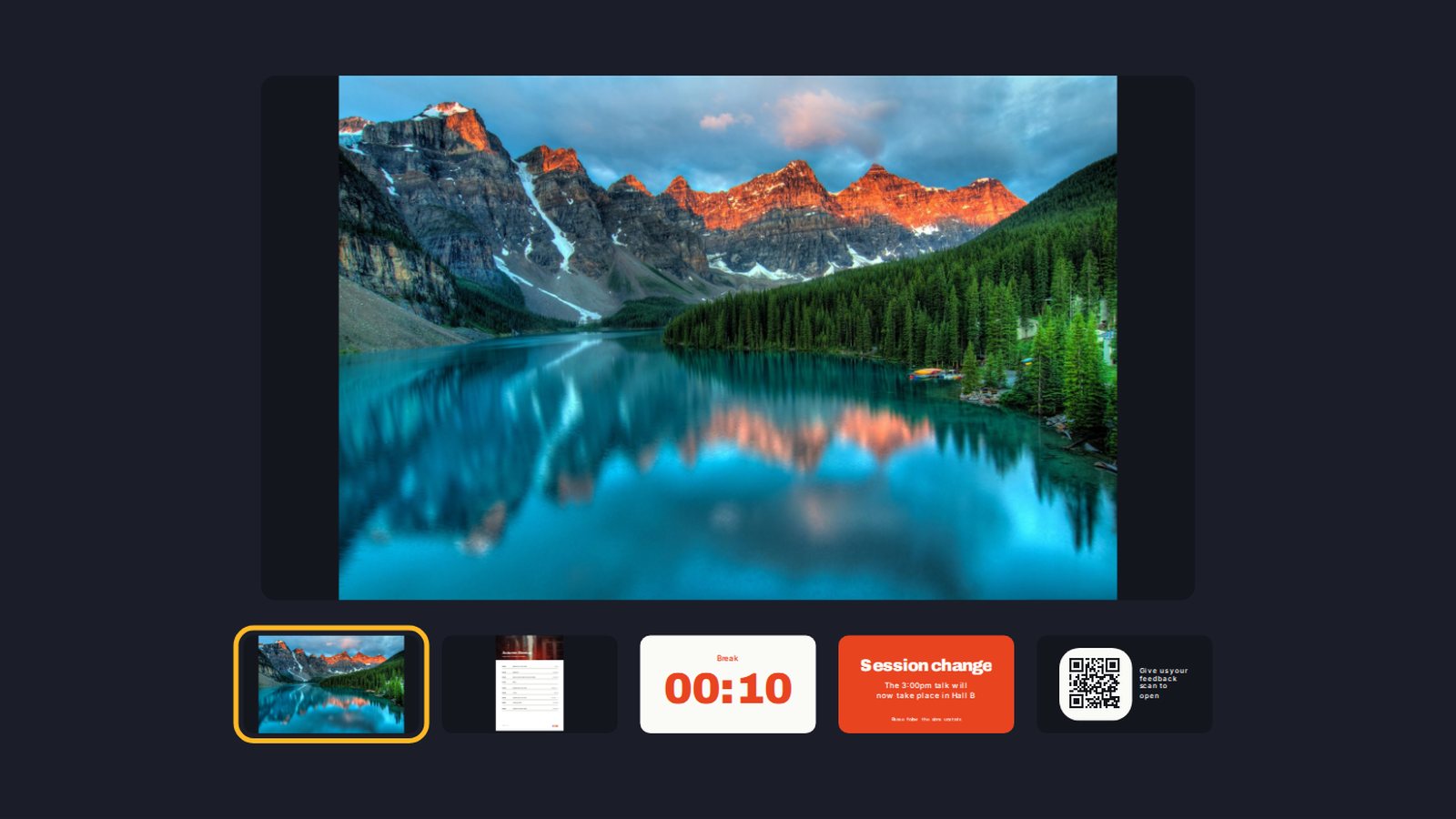
Build a Digital Signage Playlist on TV Without a New Media Player
One screen moving through the content you prepared, in the order the room needs.
Follow the interactive walkthrough →Browse the printable guides
Read it here. Take it with you.
Choose a topic and turn the handbook pages. Select a step beside the page to open its interactive walkthrough.
Show a PDF on TV or a Projector Without HDMI
Browse the connection steps and feature controls.
Your screen is the starting point.
Open vuthis.com in the display browser. Scan its connection QR code or enter the screen code from another device. Choose the content and show.
Linked resources for people and tools
Browse the steps. Reuse the references.
Every walkthrough has its own page, printable PDF and IIIF manifest with handbook images, step descriptions and descriptive links. The collection connects them with the main app and their related guides.