Your plan. On screen. On cue. · Interactive walkthrough
Build a Digital Signage Playlist on TV Without a New Media Player
One screen moving through the content you prepared, in the order the room needs.
Create a browser digital signage playlist with photos, PDFs, text, announcements, clocks, timers, counters and QR codes. Follow Add to queue, order, Auto and Loop.
Open vuthis.com on the TV or projector
Open vuthis.com in the display browser. For a projector, use its browser or the computer already connected to it. Keep the connection code on screen.
Connect your phone, tablet or laptop
Scan the screen QR code with your phone. On a laptop or tablet, open vuthis.com/r and enter the screen code. Both devices need internet; they can use different networks.
Create content and choose Add to queue
Prepare an item in its feature, then choose Add to queue instead of Show now. Repeat for the photos, PDF, notice, clock, timer or QR code the display needs.
Drag the Queue into the right order
Arrange the items in the sequence the audience should see. Remove outdated items. Use an item's Show now when something needs the screen immediately.
Choose manual play, Auto and Loop
Use Play queue for manual progression. Turn Auto on for automatic advance, set Seconds per item and enable Loop when the sequence should repeat.
Preview the whole sequence
Watch the transitions. Slideshows and countdowns can hold Auto until their own finish; ordinary items use the Queue timing. The display continues until the V U This session ends.
Useful when it matters
Put it to work in the room.
- An event welcome, programme and break timer.
- A reception notice, clock and guest Wi-Fi code.
- A temporary exhibition or shop promotion screen.
Read the V U This Build a Digital Signage Playlist on TV Without a New Media Player product guide
Get the result right
A quick screen check.
- Queue is a Pass feature in the current product.
- Use the usable browser already available on the TV or its connected device. Preview timing and session duration for the planned display period.
Read the screen from the audience position. Keep the selected content clear, current and useful for the people in the room.
Your plan. On screen. On cue.
Open vuthis.com on the display. Connect from another device. The screen is ready for the audience.
The next useful screen
Keep the whole setup ready.
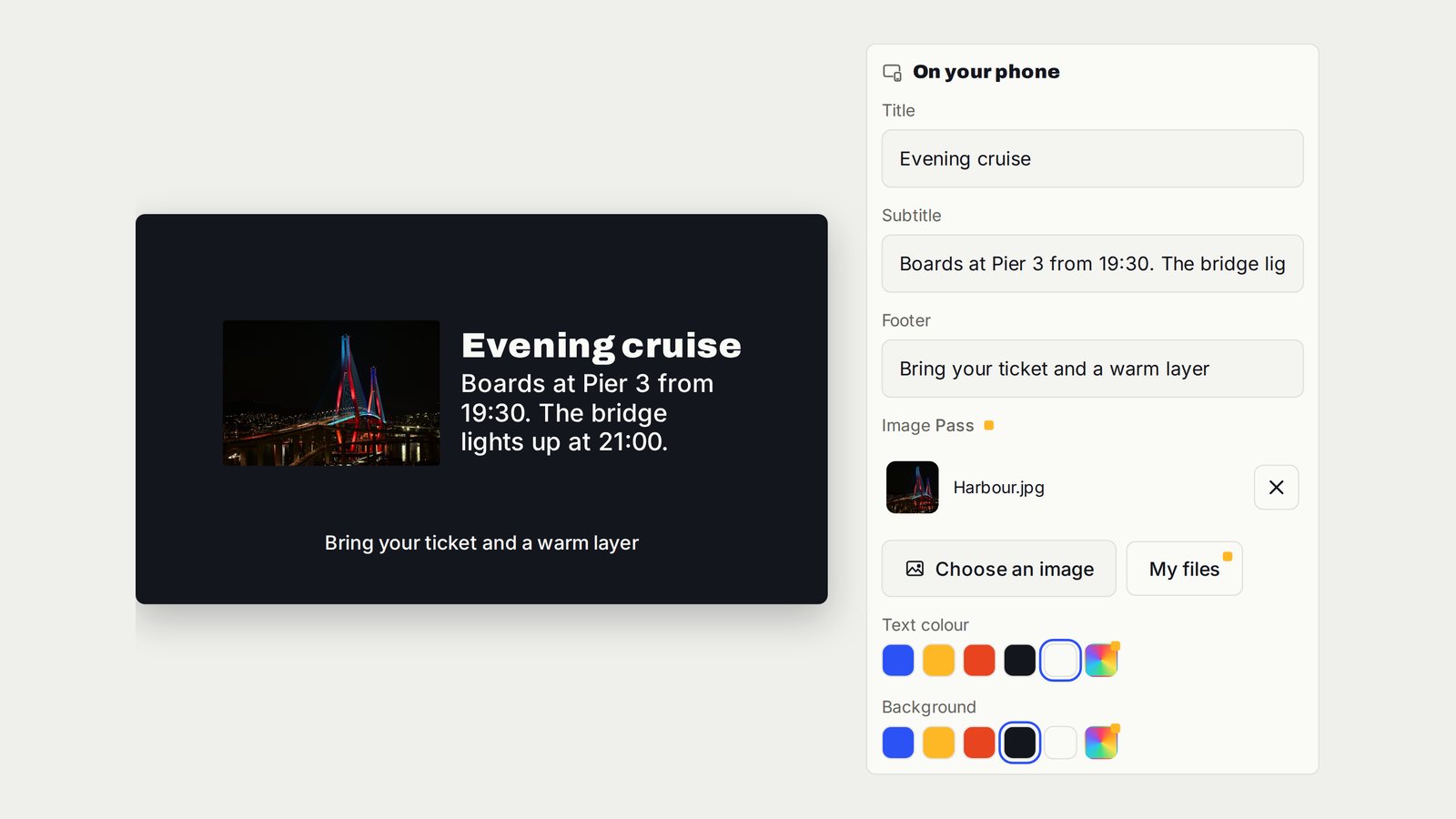
Turn a TV into a Digital Notice Board
A structured announcement that tells everyone what changed and what to do next.
Follow the interactive walkthrough →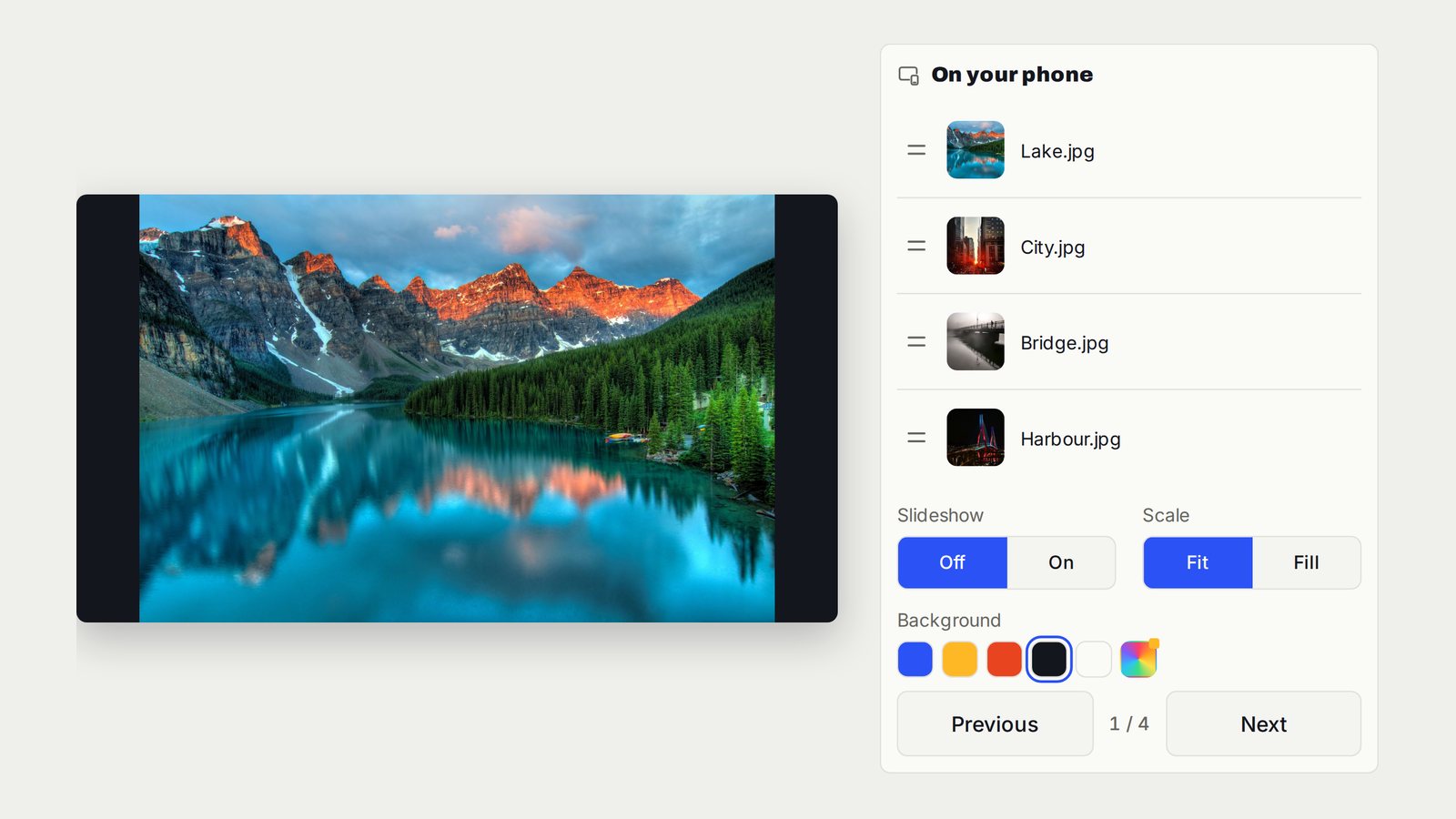
Show Photos and Run a TV Slideshow Without Casting
The photos you choose on the TV. Move through them yourself or let the slideshow run.
Follow the interactive walkthrough →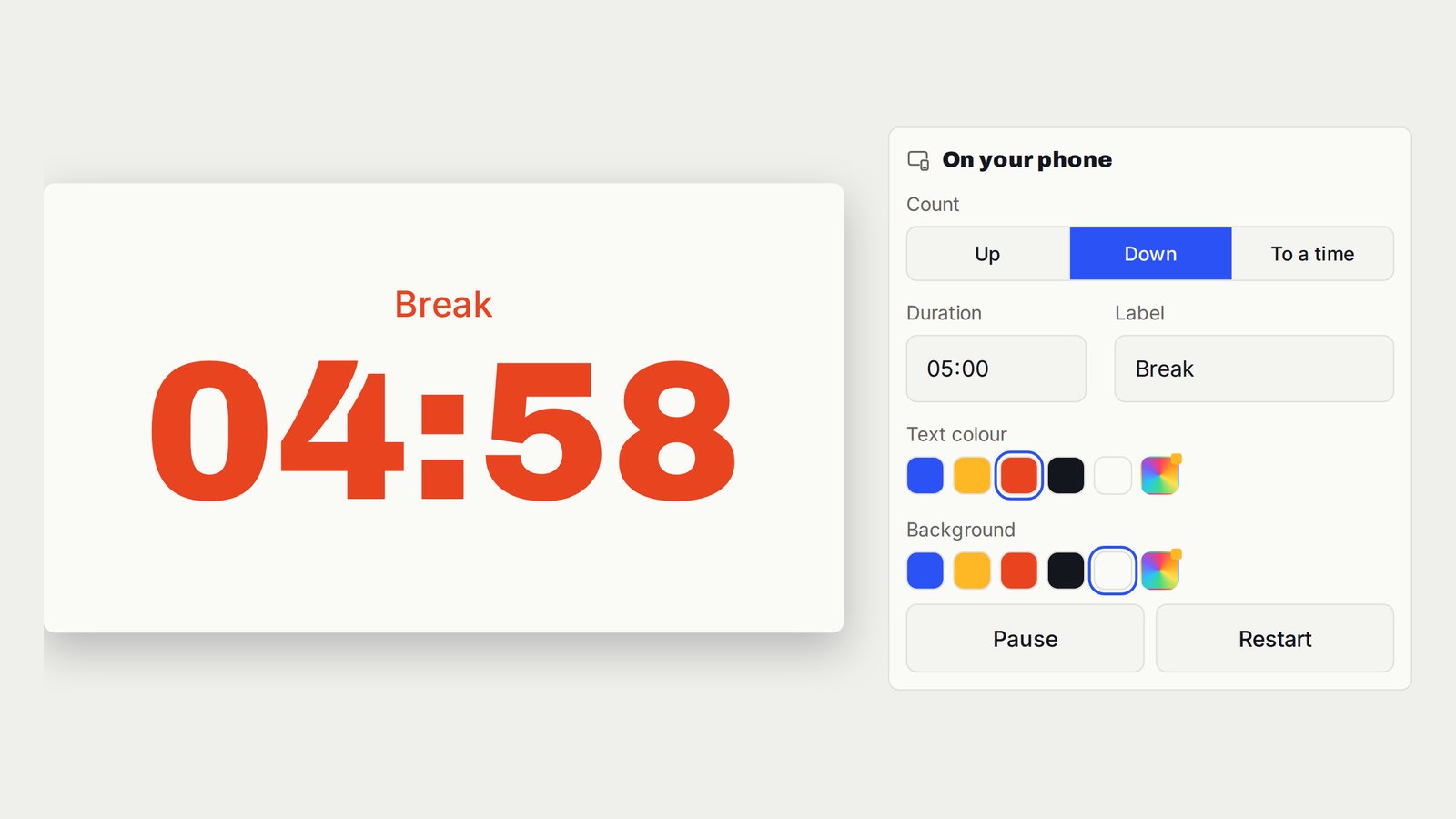
Countdown, Count-Up and Presentation Timer on TV
A clean timer for the room, with timing controls on your device.
Follow the interactive walkthrough →Read · Print · Reuse
Keep this walkthrough with the next job.
The two-page handbook has clickable setup and related-guide links. Its page images and descriptions are also available as a IIIF presentation manifest, linked to this interactive page and the main V U This product.