Help guests join in. · Interactive walkthrough
Show a Guest Wi-Fi QR Code on a Hotel or Meeting-Room TV
Guest-network joining details in one scannable code on the screen.
Display a guest Wi-Fi QR code on TV. Enter authorised network details, add a clear caption and test joining from another phone for meetings, hotels and events.
Open vuthis.com on the TV or projector
Open vuthis.com in the display browser. For a projector, use its browser or the computer already connected to it. Keep the connection code on screen.
Connect your phone, tablet or laptop
Scan the screen QR code with your phone. On a laptop or tablet, open vuthis.com/r and enter the screen code. Both devices need internet; they can use different networks.
Choose QR code, then Wi-Fi
Choose QR code and select Wi-Fi. Use guest-network details you are authorised to show to this audience.
Enter the network and security details
Enter the network name exactly. Choose the correct security type and add the password when the guest network requires one.
Add a caption and show the code
Use a clear caption such as Guest Wi-Fi: scan to join. Choose Show now and check the code is visible where guests stand.
Test joining with another phone
Scan from a separate compatible phone. Confirm it offers the correct network and complete any venue sign-in steps that network requires.
Useful when it matters
Put it to work in the room.
- A hotel meeting room welcoming attendees.
- A workshop with visiting delegates.
- A reception area offering an authorised guest network.
Read the V U This Show a Guest Wi-Fi QR Code on a Hotel or Meeting-Room TV product guide
Get the result right
A quick screen check.
- QR-code display is a Pass feature in the current product.
- A Wi-Fi QR code shares the joining details it contains. Show a guest network to its intended audience; captive portals can still require additional steps.
Read the screen from the audience position. Keep the selected content clear, current and useful for the people in the room.
Help guests join in.
Open vuthis.com on the display. Connect from another device. The guest joining route has been tested.
The next useful screen
Keep the whole setup ready.
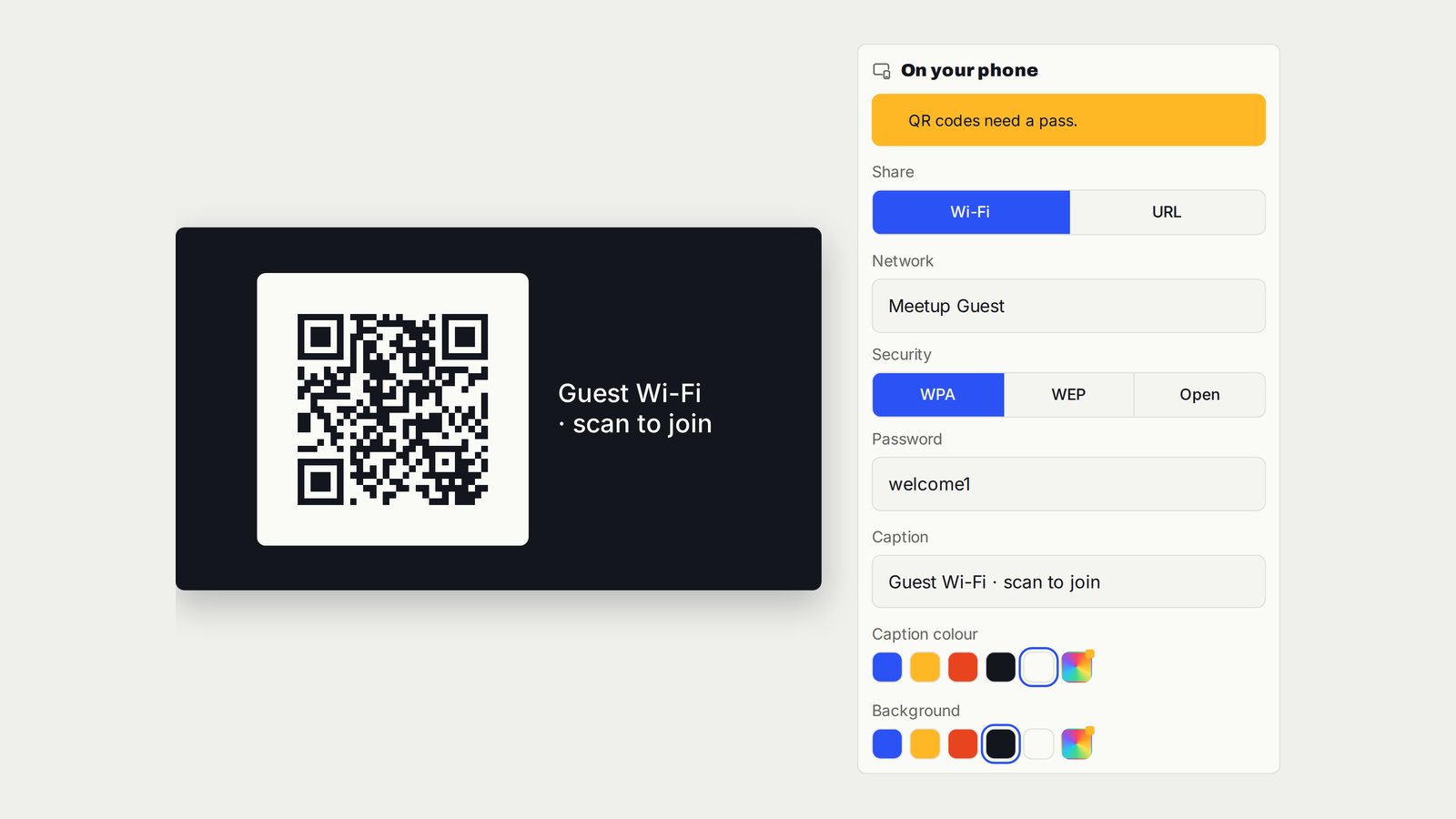
Display a Website QR Code on TV for Menus, Agendas and Feedback
One clear code on the screen, taking guests to the page they need.
Follow the interactive walkthrough →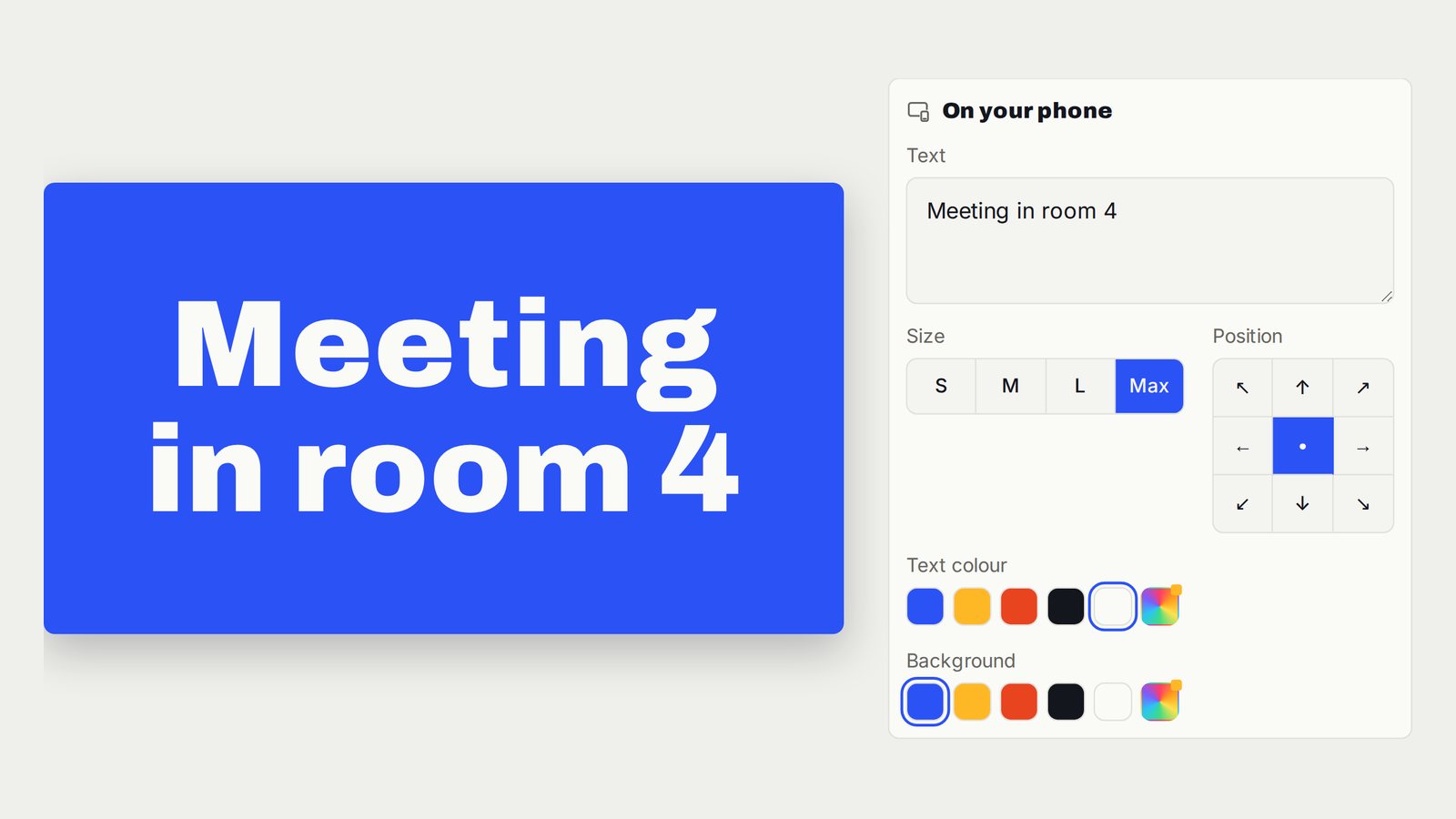
Display Large Text and Welcome Messages on TV
One clear message, readable from across the room.
Follow the interactive walkthrough →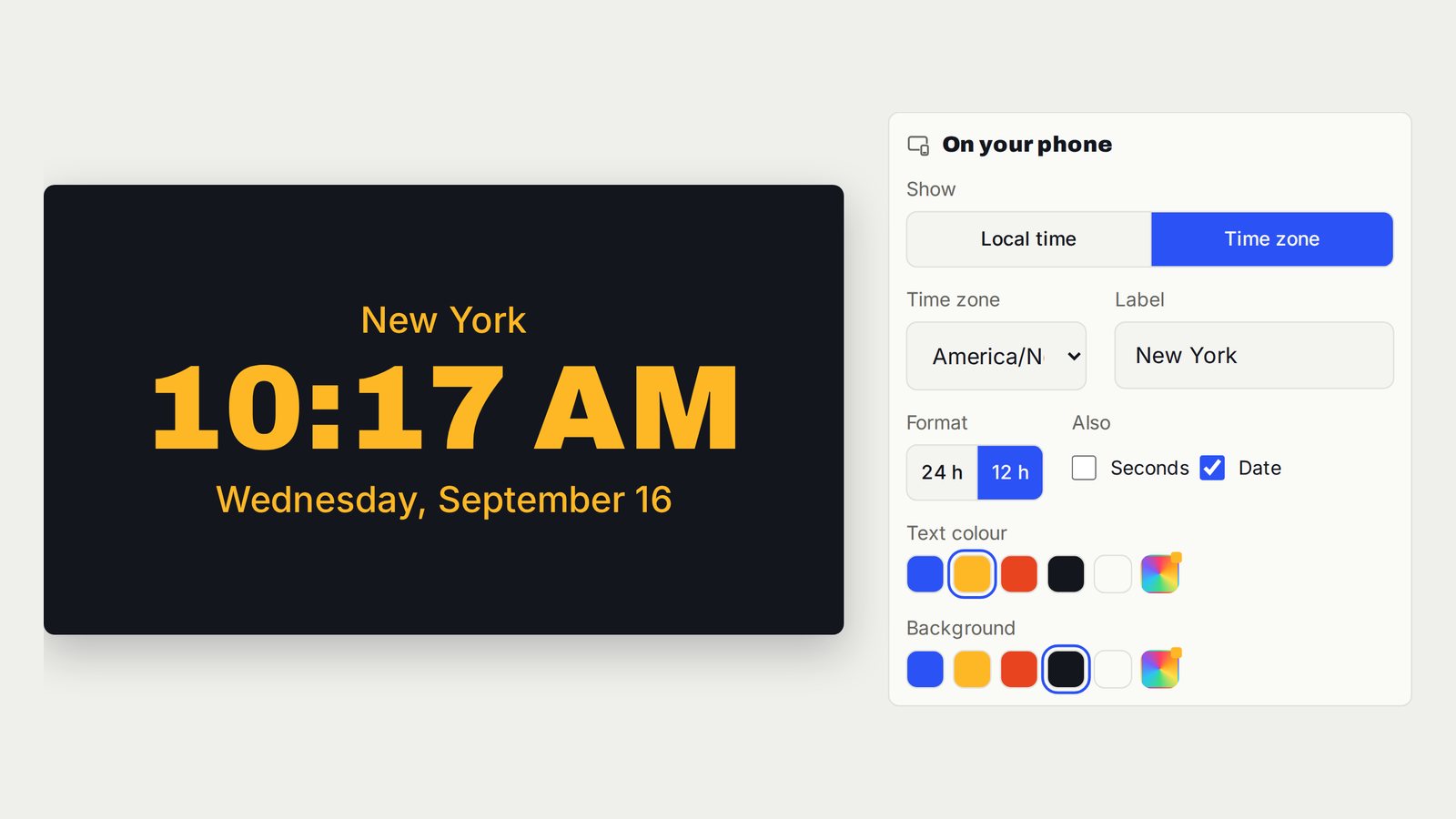
Show a Full-Screen Clock or World Time on TV
One large labelled clock for the time the room needs to follow.
Follow the interactive walkthrough →Read · Print · Reuse
Keep this walkthrough with the next job.
The two-page handbook has clickable setup and related-guide links. Its page images and descriptions are also available as a IIIF presentation manifest, linked to this interactive page and the main V U This product.